Sitecore XP MVC Views Precompilation: Make Startup 4+ Times Faster

Introduction
A common way to optimize the startup of your Sitecore XP website is by precompiling views with RazorGenerator.MsBuild.
This approach can significantly speed up your website’s startup time. There are already several articles explaining how to implement it in a Sitecore application:
- Precompiled Razor Views by Ian Jones.
- Precompiled Views and Custom Theme Engine for Sitecore by José Neto.
- Sitecore 9 View Precompilation by Olivier McNicoll.
- Precompiled Views with Sitecore 8.2 by Kam Figy.
I followed the approaches described in these articles, but I had to make some adjustments to get everything working in our project.
So, I decided to share my findings with you. Here, you’ll find all the steps required to make Sitecore XP MVC Views Precompilation work in your project.
Steps
The steps are straightforward:
1. Add the RazorGenerator.MsBuild NuGet package
First, add the RazorGenerator.MsBuild NuGet package to your projects.
In all your projects (.csproj) that include .cshtml files, add the following line:
<PackageReference Include="RazorGenerator.MsBuild" Version="2.5.0" PrivateAssets="all" />Note: In our solution, we use a Packages.props file with the Microsoft.Build.CentralPackageVersions package. Therefore, we added it like this:
Packages.props
<ItemGroup>
    <!-- ... Other imports ... -->
    <PackageReference Update="RazorGenerator.MsBuild" Version="2.5.0" />
</ItemGroup>
.csproj file
<ItemGroup>
    <!-- ... Other imports ... -->
    <PackageReference Include="RazorGenerator.MsBuild" />
</ItemGroup>
2. Update Sitecore settings
Ensure the Mvc.UsePhysicalViewsIfNewer Sitecore setting is configured correctly:
- Production environment: Set this to
true. - Development environment: Set this to
false(so updated views can be uploaded to the server and changes will reflect immediately).
Notes
That’s how you can enable Sitecore XP MVC Views Precompilation in your project. However, there are some potential issues you should be aware of:
If web.config namespaces are not working
You can define default namespaces for your views in the Views\web.config file. Learn more here. For example:
<?xml version="1.0"?>
<configuration>
  <!-- ... -->
  <system.web.webPages.razor>
    <!-- ... -->
    <pages pageBaseType="System.Web.Mvc.WebViewPage">
      <namespaces>
        <add namespace="System.Web.Mvc" />
        <add namespace="System.Web.Mvc.Ajax" />
        <add namespace="System.Web.Mvc.Html" />
        <add namespace="System.Web.Routing" />
        <add namespace="Sitecore.Mvc" />
        <add namespace="Sitecore.Mvc.Presentation" />
      </namespaces>
    </pages>
  </system.web.webPages.razor>
  <!-- ... -->
</configuration>
However, this may not work with precompiled views due to Razor implementation details.
If you encounter compilation errors, try adding the following line to your .csproj file:
<!-- System.Web.Mvc, Version=5 -->I also discussed this in a RazorGenerator GitHub issue: #211.
Here’s the full working import in the .csproj file:
<ItemGroup>
    <!-- ... Other imports ... -->

    <!-- System.Web.Mvc, Version=5  DO NOT REMOVE: RazorGenerator identifies this as an MVC project -->
    <PackageReference Include="RazorGenerator.MsBuild" />
</ItemGroup>
Duplicated views in Solution Explorer
I encountered an issue where views were shown multiple times in Solution Explorer.
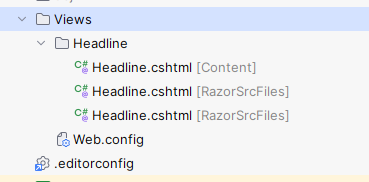
If you face a similar issue (e.g., in Rider), you can disable precompilation by default and enable it only during deployment.
Use a Directory.Build.props file in the root of the solution to achieve this:
<Project>
    <!-- This is used to hide duplicated items in Solution Explorer -->
    <PropertyGroup>
        <PrecompileRazorFiles Condition=" '$(PrecompileRazorFiles)' == '' ">false</PrecompileRazorFiles>
    </PropertyGroup>
</Project>
This disables precompilation by default, but you can enable it during deployment:
-
If using the
msbuildcommand to deploy, pass this parameter:/p:PrecompileRazorFiles=true -
Or, enable it via a
.pubxmlfile:<Project> <PropertyGroup> <PrecompileRazorFiles>true</PrecompileRazorFiles> </PropertyGroup> </Project>
Results
Enabling views precompilation significantly reduced our website’s startup time across all environments (local, dev, staging, production).
Here are some examples of the startup times:
- PROD CM: Now 77 sec (previously 669 sec).
- PROD CD: Now 165 sec (previously 1094 sec).
As you can see, precompilation has greatly improved the website’s performance. If you’re not using it yet, you should definitely give it a try!
View article as markdown